
Are there any AI tools for beginners? Everything seems overwhelming… If you’re new to AI and feeling a mix of curiosity and overwhelm, you’re in the right place. You don’t need to be a developer or spend a fortune to get real value this week. After 10 years helping teams adopt new tech, I’ve learned that small, practical steps beat big, complicated plans. In this guide, I’ll show you a simple, low‑risk way to use AI to save hours—starting today.
Introduction: Skip the Hype—Get Real Results in a Week
You’ll get a short list of tools that are easy to learn, copy‑paste prompts you can use right now, a 7‑day plan to build momentum, and straightforward safety tips. If you’ve been googling “AI tools for beginners,” this is the practical, calm walkthrough I wish I had when I started experimenting with AI in my client work and my own business.
Here’s the plan:
- Start with a no‑regret starter stack that works with what you already use.
- Pick your first three tools based on your goals—writing, meetings, research, visuals, or automation.
- Follow a simple 7‑day ramp plan, 30–45 minutes per day.
- Avoid common mistakes and stay on the right side of privacy and compliance.
- Track your time saved so you actually see the impact.

The No‑Regret Starter Stack (What to Use First—and Why)
This is the stack I’ve repeatedly seen “just work” for individuals, students, and small teams. Each tool is beginner‑friendly, has a useful free tier, and integrates nicely with common workflows.
Writing & Chat: ChatGPT or Claude
- Why it matters: Most people get the fastest wins in writing—emails, summaries, outlines, and rewrites.
- What to use:
- ChatGPT Free (fast, widely integrated)
- Claude (great at long documents, careful tone)
- Try this in 10 minutes:
- Paste a rough draft email and ask for a 120–150 word version with one clear call to action.
- Ask for two tone options: professional and friendly.
- Watch‑outs:
- Be clear about your audience and desired tone.
- For factual claims, always verify with sources.
- Prompt to copy:
- “Turn these bullets into a concise, friendly email with one clear call to action. Keep it to 120–150 words and ask one clarifying question at the end. Bullets: [paste]”
Research With Sources: Perplexity
- Why it matters: Quick answers are great, but answers with citations are better when you need to trust the information.
- Try this in 10 minutes:
- Ask “Explain [topic] for a beginner” and click through the top cited links to verify.
- Compare “Tool A vs Tool B for [use case]” and read the source snippets.
Prompt to copy:
- “Explain [topic] for a beginner. Give me 5 key points with source links and short quotes from each source.”
Meetings & Notes: Otter.ai
- Why it matters: Automatic transcription and summaries turn a messy meeting into actionable notes.
- Try this in 10 minutes:
- Connect Otter to your next Zoom/Google Meet/Teams call.
- After the meeting, copy the summary and action items into your task tool (or use a simple Zap—details below).
Prompt to copy (after your meeting):
- “Extract action items with owners and due date suggestions from the notes below. Output as [Owner] [Task] [Due date]. Notes: [paste]”
Notes & Docs: Notion (with or without Notion AI)
- Why it matters: One central place for notes, templates, meeting minutes, and SOPs makes AI output easier to store and reuse.
- Try this in 10 minutes:
- Create a “Meeting Notes” page with a section for Decisions, Risks, and Next Steps.
- Paste Otter’s summary, then ask Notion AI (if enabled) to extract tasks.
Pro tip:
- Create a “Brand Voice” page with sample copy and tone notes. When you write with ChatGPT or Claude, paste your brand voice snippet to keep things consistent.
Presentations & Design: Canva Magic Studio (or Gamma)
- Why it matters: Going from outline to clean slides or social graphics can be the difference between “done” and “stalled.”
- Try this in 10 minutes:
- Draft a 10‑slide outline in ChatGPT or Claude, then paste it into Canva to generate slides.
- Set up a simple brand kit with logo, colors, fonts so outputs match your style.
Prompt to copy:
- “Create a 10‑slide outline on [topic] for [audience]. For each slide: title, 3 bullets, 1 visual idea, 1 sentence speaker note.”
No‑Code Automation: Zapier (Free)
- Why it matters: This is where you save real time—moving info from A to B without manual copy‑paste.
- Try this in 10 minutes:
- Zap #1: Gmail label “Action” → Create task in Notion/Asana/Trello with subject + link
- Zap #2: Calendar event in 15 minutes → Slack message to the channel with link and agenda
- Pro tip:
- Start with single‑step Zaps and high‑leverage triggers like email labels or form submissions.
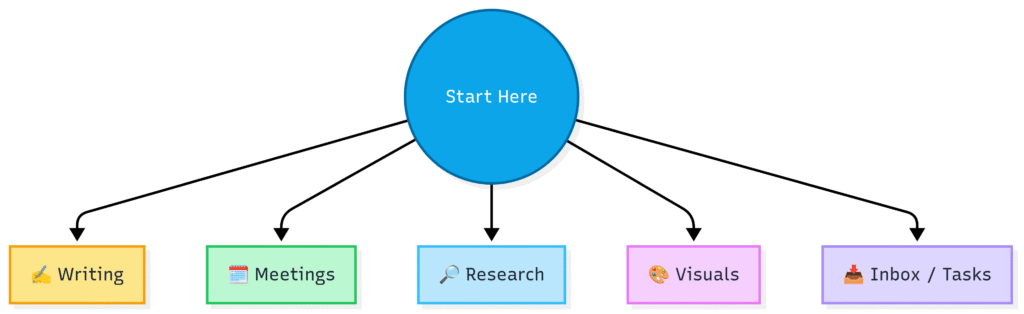
Quick Decision Guide: Pick Your First Three Tools
You don’t need 20 tools. Pick three that match your main bottleneck and get quick wins. Here’s a simple way to choose.
If you’re mostly writing
- Tools: ChatGPT or Claude → Notion → Canva
- Why this combo: Draft, store, and design—end to end.
If meetings are your time sink
- Tools: Otter → ChatGPT/Claude → Zapier
- Why this combo: Capture everything, turn it into actionable tasks, and automate the handoff.
If you need trustworthy research
- Tools: Perplexity → Notion → ChatGPT/Claude
- Why this combo: Source‑based answers, clean notes, and polished synthesis.
If visuals/presentations stall you
- Tools: Canva → ChatGPT/Claude (for outline) → Gamma (optional)
- Why this combo: From idea to slides fast, with clean layouts.
If your inbox and tasks are messy
- Tools: Zapier (email → task) → Notion/ClickUp → ChatGPT (draft replies)
- Why this combo: Automate the intake, track work, and respond faster.
A quick rule of thumb: Don’t add a fourth tool until you’re saving at least 60 minutes per week with the first three. This keeps your stack tight and your habits strong.
Your 7‑Day Ramp Plan (With Prompts and Checklists)
Give yourself one week, 30–45 minutes a day. By Day 7, you’ll have repeatable workflows that save time every week.
Day 1: Goals and Safety Settings
- Pick 2–3 tasks you do weekly that AI can help with:
- Summarize meetings into action items
- Turn bullet notes into a polished email
- Create a simple slide deck from an outline
- Create free accounts:
- ChatGPT or Claude, Perplexity, Otter, Notion, Canva, Zapier
- Privacy checklist:
- Don’t paste sensitive data: passwords, IDs, unreleased financials, client secrets
- Check data/training settings in each tool; disable “use my content to improve” where possible
- Use your work email if your company requires approved accounts
Day 2: Write Faster (Emails, Summaries, Outlines)
- Try these prompts in ChatGPT or Claude:
- “Rewrite this to be clearer and more confident in 130–150 words. Keep facts intact and end with a single question: [paste]”
- “Summarize these notes into 5 bullets, then draft a 1‑paragraph recap and 3 action items: [paste]”
- “Create a blog post outline on [topic] for [audience] with H2s and bullet points. Suggest 3 credible sources to consult.”
Personal tip from 10 years of writing workflows:
- When you provide a sample of your tone (I keep a 150‑word blurb that sounds like me), the output requires far less editing. I paste that into chats as “Use this voice as a guide.”
Day 3: Turn Meetings Into Tasks (On Autopilot)
- Set up Otter.ai for your next Zoom/Meet/Teams call.
- After the call:
- Copy the summary to ChatGPT/Claude for cleanup.
- Use this prompt:
- “Extract action items with [Owner] [Task] [Due date suggestion] from these notes. Also list any open questions: [paste]”
- Optional Zapier automation:
- Trigger: New Otter note
- Action: Create task in Notion/Asana/Trello with the summary and due date
Day 4: Research With Citations You Can Trust
- Use Perplexity with this workflow:
- Ask your question
- Skim cited sources
- Open 2–3 links and verify dates/claims
- Save key quotes in Notion with links
- Prompts to try:
- “Explain [topic] for a beginner. List 5 key points with links and short quotes.”
- “Compare [Tool A] vs [Tool B] for [use case]. Create a table: criteria, winner, reason, caveat, source link.”
Personal tip:
- I always over‑document sources. When a client or teammate asks “Where did that come from?”, you’re ready with a link and a quote. It builds trust fast.
Day 5: Presentations and Visuals Without the Headache
- Draft your slide outline in ChatGPT/Claude:
- “Create a 10‑slide outline on [topic] for [audience]. For each slide, include a title, 3 bullets, one visual idea, and a single‑sentence speaker note.”
- Paste the outline into Canva/Gamma to generate slides
- Add your brand kit in Canva: logo, colors, fonts for consistent output
For example: Create a 10‑slide outline on [AI AUTOMATION] for [content creators]. For each slide, include a title, 3 bullets, one visual idea, and a single‑sentence speaker note.

this slide was created in less than 15 seconds in gamma ai
Day 6: Simple Automations That Save Time Weekly
Set up two starter Zaps:
- Email → Task
- Trigger: Gmail — New email with label “Action”
- Action: Notion — Create task (Title = subject; URL = thread link; Due = +2 days)
- Calendar → Slack reminder
- Trigger: Google Calendar — Event start in 15 minutes (with attendees)
- Action: Slack — Send channel message with agenda and meeting link
Personal tip:
- Start with the one task you’re constantly copy‑pasting. For me, it was turning customer emails into project tasks. Once that was automated, I felt the time savings every single day.
Day 7: Review, Keep What Works, Plan Next Steps
- Quick review checklist:
- Which workflows saved time this week? Keep those.
- Which ones felt clunky? Pause or delete them.
- Do you need to upgrade one tool (e.g., longer Otter recordings, multi‑step Zaps)?
- Measure value (see ROI formula below) and note your weekly time saved.
Beginner‑Friendly Tools by Use Case (With Prompts and Tips)
Below are the categories where most beginners get value. Each pick includes a quick “best for” note, free‑plan insight, and a pro tip.
Writing & Editing
- ChatGPT (OpenAI)
- Best for: Brainstorming, rewriting in different tones, quick summaries
- Free: Yes; daily use limits can vary
- Pro tip: Share a brief tone sample (150 words) to reduce edits
- Prompts to try:
- “Outline a blog post with H2s and key talking points on [topic] for [audience].”
- “Rewrite this to be 20% shorter but keep all key facts. Maintain [brand voice].”
- Claude (Anthropic)
- Best for: Structured writing, longer documents, careful responses
- Free: Yes; volume limits apply
- Pro tip: If it refuses a request, clarify the purpose and constraints
- Prompt to try:
- “Draft a 500‑word brief summarizing [topic] for [audience], followed by a numbered list of recommendations.”
Research & Learning
- Perplexity
- Best for: Answers with citations, quick literature checks
- Free: Strong; Pro adds more depth and model options
- Pro tip: Always click through to the source—don’t stop at the overlay
- Elicit or Consensus
- Best for: Academic‑style research and paper summaries
- Free: Varies by tool; both offer entry plans
- Pro tip: Check dates and methods; add quotes to Notion with source links
Meetings & Notes
- Otter.ai
- Best for: Transcriptions, summaries, action items
- Free: Monthly transcription limits; good for a few meetings/week
- Pro tip: Start meetings with a template: Decisions, Risks, Next Steps
- Fireflies.ai or Zoom AI Companion
- Best for: More integrated meeting summaries if you’re already on those platforms
- Pro tip: Notify attendees you’re recording and respect company policy
Presentations & Design
- Canva Magic Studio
- Best for: Slides, social posts, banners
- Free: Generous; some features in Pro
- Pro tip: Build a brand kit once—saves time on every project
- Gamma
- Best for: Text‑to‑slides and one‑pagers
- Pro tip: Feed it a clean outline; focus on structure before style
Video & Audio (Optional but Fun and Useful)
- Synthesia, Pictory, or Runway
- Best for: Script‑to‑video explainers or repurposing long content
- Pro tip: Keep scripts short, use captions, and add a custom intro/outro
Email & Inbox Assistants
- Gmail Help Me Write / Outlook Copilot
- Best for: Drafting replies and rewriting long threads
- Pro tip: Add context: who you’re writing to and the desired outcome
Task & Project Management
- Notion, ClickUp, Asana
- Best for: Turning notes into tasks, recaps of project updates
- Pro tip: Use a consistent task template: Title, Owner, Due Date, Priority, Link
No‑Code Automation
- Zapier
- Best for: Connecting your apps without code
- Free: Single‑step Zaps and a task cap; enough to start
- Pro tip: Begin with the highest‑friction manual step in your week
Privacy, Safety, and Setup That Keep You Out of Trouble
You don’t need to be a security expert to be safe. A few simple habits go a long way.
What not to paste
- Passwords or access tokens
- Personal IDs and medical data
- Client secrets or unreleased financial information
- Anything your company policy classifies as restricted
Settings to check (in most tools)
- Look for these toggles or equivalents:
- “Turn off chat history” or “Do not use my content to improve services”
- “Opt out of training” for your account, workspace, or document
- “Data retention” settings; keep them minimal
- If you’re in the EU or handle EU data:
- Prefer tools with GDPR commitments and data processing agreements
- Consider on‑device or enterprise plans for sensitive use cases
Work or school accounts
- Many organizations require approved tools and enterprise plans
- Use your work email for work projects; don’t mix personal and corporate data
- When in doubt, ask IT or your instructor for approved options
Verify factual outputs
- For research and claims:
- Ask for citations and click through to the source
- Look at dates and author credibility
- Keep a short “Sources” section in your notes for each project
Personal insight:
- On projects with compliance requirements, we set a rule: “No pasted PII in chats; all claims must include a link.” It sounds strict, but it prevents headaches later and makes reviews much faster.
Common Pitfalls, Troubleshooting, and Simple ROI Math
I’ve coached dozens of teams through their first month with AI. The obstacles are predictable—and fixable.
Pitfall: Vague prompts, vague results
- Fix:
- State audience, tone, length, and format
- Provide a sample of your voice or a short style guide
- Ask for two versions: one safe, one bold, to choose from
Pitfall: Trusting outputs without checking
- Fix:
- Ask for citations and read at least two source links
- For numbers, ask for the original source and date
- Keep a checklist: Source, Date, Author, Quote
Pitfall: Tool overload
- Fix:
- Start with three tools max
- Review weekly: keep what saves time, ditch the rest
- Avoid adding new tools until you’re saving at least 60 minutes/week
Pitfall: Privacy slips
- Fix:
- Use redacted examples when testing
- Store sensitive info in approved systems only
- Turn off training where possible and use enterprise plans if needed
Troubleshooting tips that save hours
- Not getting your tone? Paste a 150‑word sample of your voice and say “match this style.”
- Meeting notes too long? Ask for a “5‑bullet executive summary, then 3 action items.”
- Slides feel generic? Add your brand kit and a 1‑sentence audience description per slide.
Simple ROI calculator (so you see the value)
- Formula: Minutes saved per task × tasks per week ÷ 60 × your hourly value = weekly value
- Example:
- 15 minutes saved per email × 8 emails/week ÷ 60 × $40/hour = $80/week
- My baseline for success:
- If your starter stack isn’t saving you at least one hour/week by the end of Month 1, simplify your workflows or swap one tool
Role‑Based Starter Stacks + Real‑World Examples
One reason I’m confident recommending this setup is that I’ve watched it work across different roles and skill levels. Here are ready‑to‑go stacks and examples you can borrow.
Students
- Stack: Perplexity (research) + Notion (notes) + ChatGPT/Claude (writing)
- How to use it:
- Research with Perplexity, save quotes with links in Notion
- Draft your essay in ChatGPT/Claude using your notes as input
- Ask for a final checklist: thesis clarity, citation format, transitions
- Real example:
- A graduate student I coached reduced essay prep from 4 hours to 2 by capturing sources in Notion and using ChatGPT for structure and transitions—still writing in their own voice.
Marketers & Creators
- Stack: ChatGPT/Claude (briefs/copy) + Canva (graphics/slides) + Zapier (form → sheet/CRM)
- How to use it:
- Create a campaign brief: audience, hook, angle, CTAs
- Generate social captions and a slide deck outline
- Design posts in Canva using your brand kit
- Real example:
- In a small marketing team, we standardized a “weekly content kit” (brief → captions → slides). The team saved 3–4 hours/week and posted more consistently without hiring.
Operations & Project Managers
- Stack: Otter (meeting notes) + Notion/ClickUp (tasks) + Zapier (email/meeting → task)
- How to use it:
- Auto‑capture meetings with Otter; extract tasks and owners
- Zap action emails labeled “Action” into your task list
- Post a weekly status summary written by ChatGPT (based on tasks)
- Real example:
- A PM saved 90 minutes/week by automating task creation from meeting notes and email labels. The team missed fewer deadlines because action items had owners and due dates the same day.
Small Business Owners
- Stack: ChatGPT/Claude (customer emails, proposals) + Canva (flyers, ads) + Perplexity (competitor checks)
- How to use it:
- Draft customer replies and proposals quickly, using your brand voice snippet
- Create simple promo graphics and one‑pagers in Canva
- Run monthly competitor checks in Perplexity with links saved in Notion
- Real example:
- A local service business I worked with increased close rates by sending proposals within 24 hours (down from 3–4 days). The owner used templates plus AI rewrites to stay fast and on‑brand.
Solo Consultants & Freelancers
- Stack: Notion (SOPs, client notes) + ChatGPT/Claude (deliverables) + Zapier (lead capture → CRM)
- How to use it:
- Keep a “Proposal” template in Notion and generate tailored versions for each client
- Use ChatGPT to polish deliverables and adjust tone per client
- Automate lead intake: form submissions go straight into your CRM or Notion database
- Real example:
- I use this myself. My proposal turnaround time went from days to same‑day, and lead follow‑up stopped slipping through the cracks.
Conclusion: Start Small, Win Fast—Then Scale
If you’ve made it this far, you have everything you need to start. Pick three tools, follow the 7‑day plan, and measure your time saved. Whether you’re a student, a solo builder, or part of a team, this approach will help you get value without the stress.
A quick recap:
- Writing: ChatGPT or Claude
- Research: Perplexity
- Meetings: Otter
- Notes & Docs: Notion
- Slides & Graphics: Canva
- Automation: Zapier
If you came here searching for AI tools for beginners, I hope you leave with a clear path and the confidence to act. Try the prompts above, set up one small automation, and run your first week. Then keep what works and expand from there.
Call to action:
- Choose your three tools right now.
- Put Day 1 on your calendar.
- Track your time saved this week and decide if one upgrade is worth it.
- Share this guide with a teammate so you can build the habit together.
FAQs
1) What’s the best free tool to start with if I only have 30 minutes?
If you do a lot of writing, start with ChatGPT or Claude. Take one real email or page of notes and run the prompts in this guide. If meetings are your main pain point, try Otter on your next call and use the action‑item prompt to create a checklist. If you need trustworthy answers today, start with Perplexity—ask your question, open the top two sources, and save quotes in Notion. The goal is one clear win in your first 30 minutes, not a full overhaul of your stack.
[Image placeholder: Split‑screen showing a short email draft on the left and a polished AI‑assisted version on the right]
2) Can I use these tools safely at work or school?
Yes—with a few precautions. Avoid pasting sensitive data, use approved accounts, and turn off “use my content to improve” where possible. For factual work, ask for citations and verify the claims. If you’re in a regulated environment or the EU, look for tools with compliance statements (SOC 2, GDPR) and data processing agreements. When privacy really matters, consider enterprise plans or workflows that keep sensitive data out of chats altogether.
3) How do I avoid wrong answers or generic output?
Be specific. State your audience, tone, length, and format. Provide a short sample of your voice and ask for two variations to choose from. For facts, ask for citations and click through to the sources. When output feels bland, add constraints like “6‑word slide headlines” or “3 bullets max per slide.” Over time, keep a library of prompts and tone samples. The more context you reuse, the better the results.
Additional notes for readers:
- You’ll see the phrase “AI tools for beginners” a few times in this guide because many people search for that exact term. The advice here is grounded in real workflows I’ve implemented with clients and in my own work.
- If you want a printable version of the 7‑day plan and prompts, save this page or copy the checklists into your notes app.